Skip to content
The Lazy Administrator
  • Home
  • Disclaimer
  • Contact
  • About Me
  • Search Icon

The Lazy Administrator

Finding ways to do the most work with the least effort possible

Block Outdated Operating Systems with Microsoft Defender for Cloud Apps (Cloud App Security)

Block Outdated Operating Systems with Microsoft Defender for Cloud Apps (Cloud App Security)

September 12, 2022 Brad Wyatt Comments 0 Comment

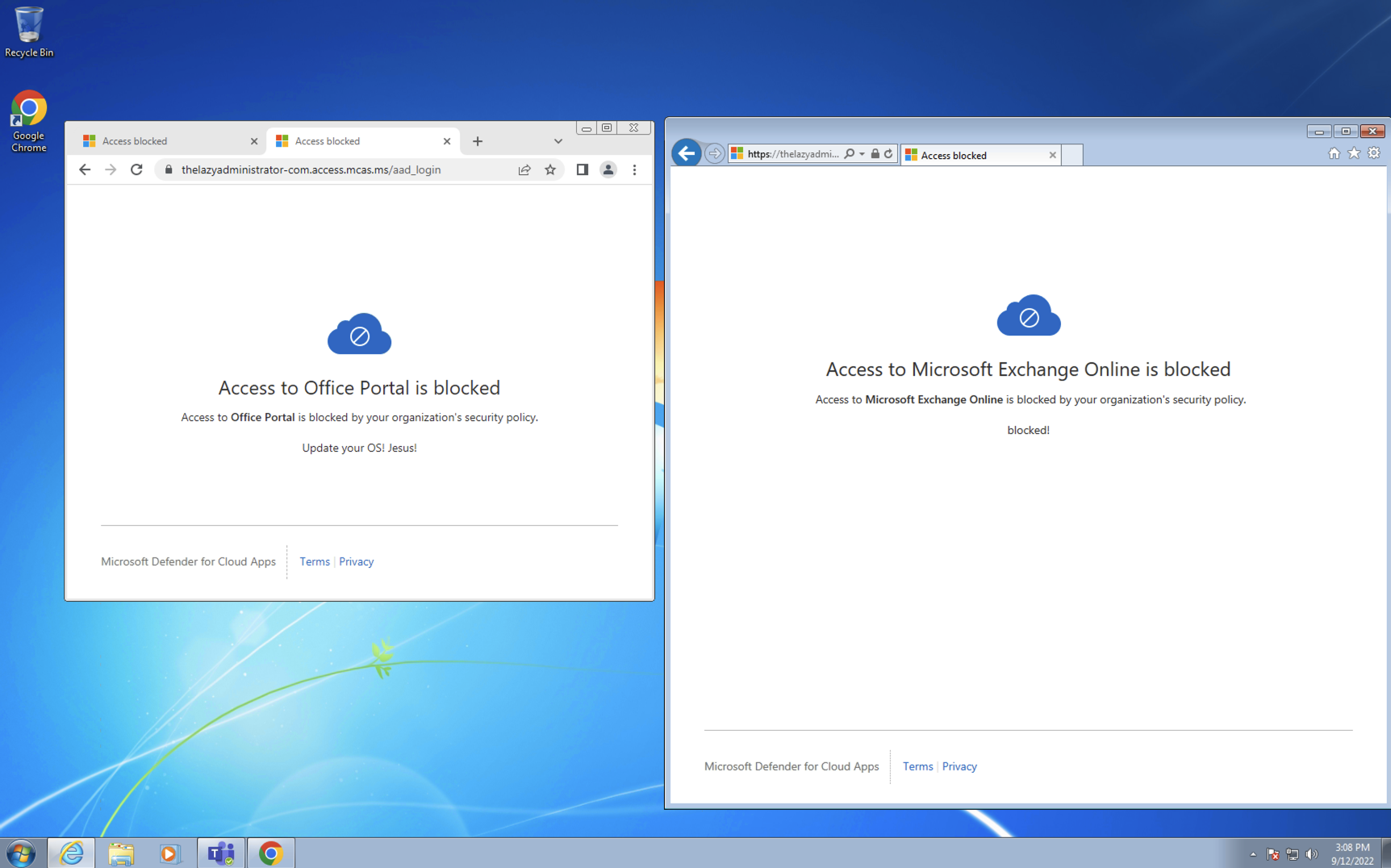
In this write up I will be configuring Microsoft Defender for Cloud Apps (old name is Cloud App Security) and Conditional Access to block outdated operating systems from accessing Microsoft 365 services within my tenant.


Licensing

First thing you want to figure out, is licensing. You must have a license that enables “Microsoft Defender for Cloud Apps Discovery” and not “Microsoft Defender for Cloud Apps.” At the time of writing EM+S E5 sku will not work but Microsoft 365 E5 Security sku will. You will also need Azure Active Directory Premium P2 license.

Setting up Conditional Access

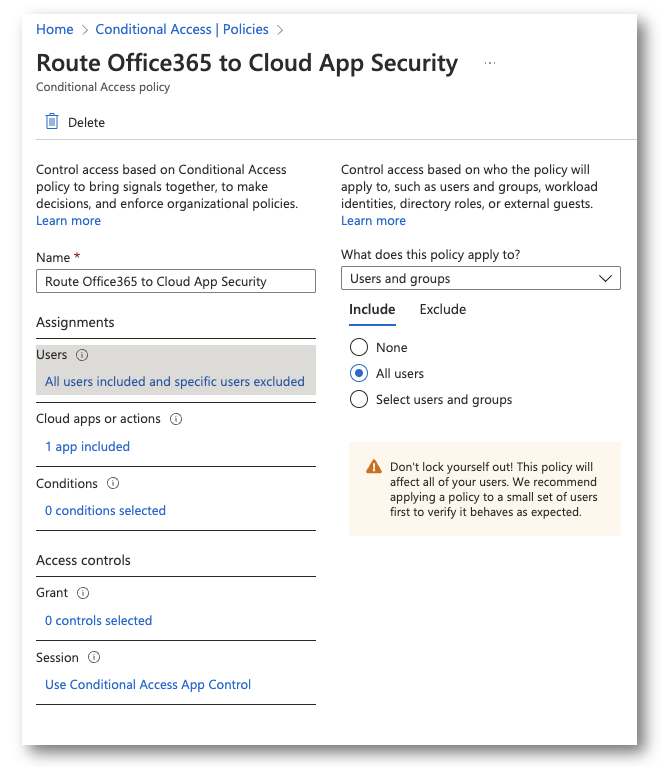
Once we have the proper licensing we need to route applications to Microsoft Defender for Cloud Apps. In the Azure Portal, go to Conditional Access and create a new Policy.

Assignments

In my assignments, I selected all users and excluded my break-glass account.

Cloud Apps or Actions

Next, I selected the Office … Continue...

Connect to Exchange Online PowerShell with an Azure Managed Identity

Connect to Exchange Online PowerShell with an Azure Managed Identity

September 9, 2022 Brad Wyatt Comments 5 comments

Recently the Exchange Online Module v2 came out with support for connecting to Exchange Online via a managed identity. The module has several parameters:

  1. ManagedIdentity
  2. ManagedIdentityAccountId
  3. Organization

When using the ManagedIdentity parameter you must also call the Organization parameter which is the initial, or ‘.onmicrosoft’ domain.

What You Will Need

  • PowerShell
  • Az PowerShell Module (install-module az)
  • The Microsoft Graph SDK (install-module Microsoft.Graph

Create the Managed Identity, Permissions, and Runbook

Connect to Azure

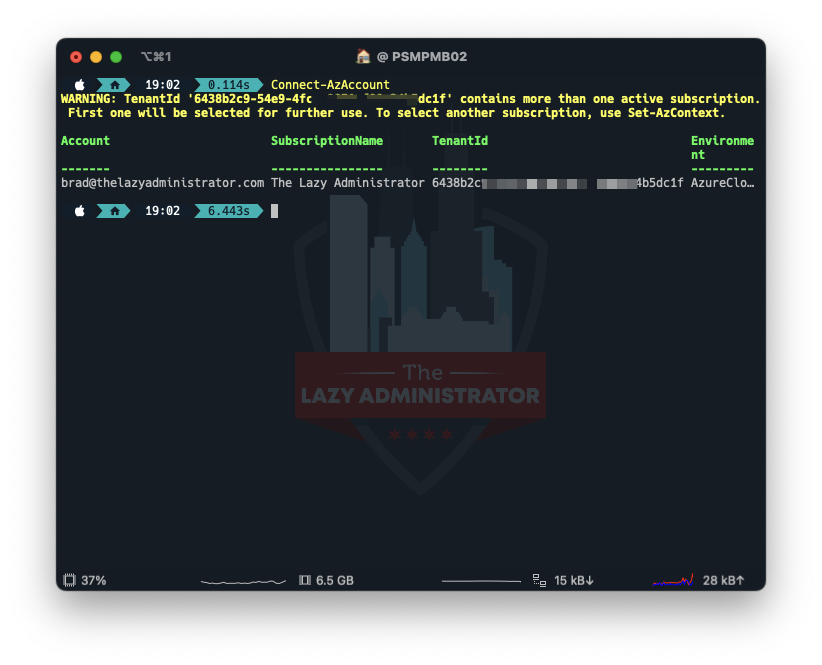
First thing we must do is connect to Azure using the Az module. Open a PowerShell window and run

Connect-AzAccount

Create a Resource Group

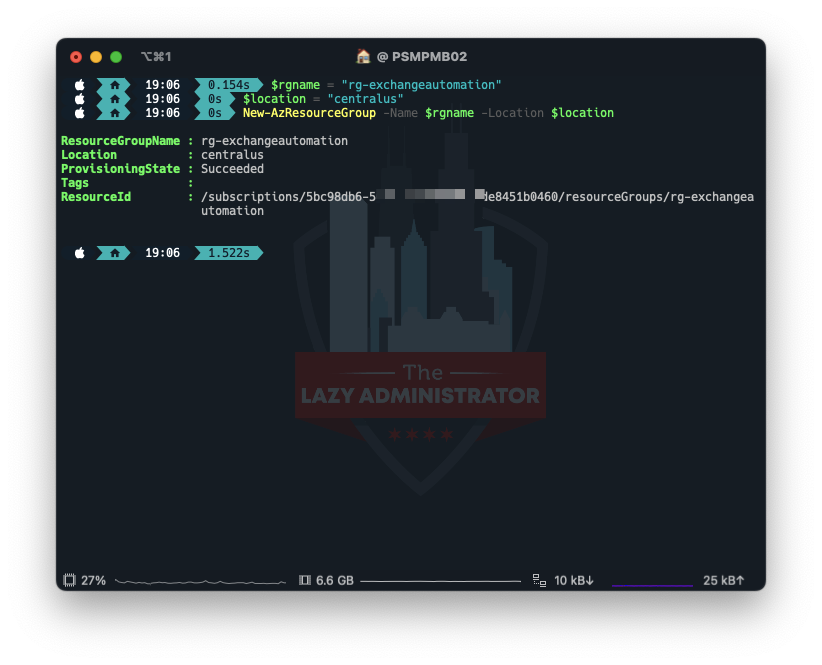
After we are connected we need to create a Resource Group to house everything. In my example I will create a new Resource Group in the Central US region.

$rgname = "rg-exchangeautomation"
$location = "centralus"
New-AzResourceGroup -Name $rgname -Location $location

Create the Automation Account

Next, we need to create the Automation Account that runs … Continue...

Creating a Microsoft 365 Automated Off-boarding Process with SharePoint, Graph API, and PowerShell

Creating a Microsoft 365 Automated Off-boarding Process with SharePoint, Graph API, and PowerShell

September 8, 2022 Brad Wyatt Comments 0 Comment

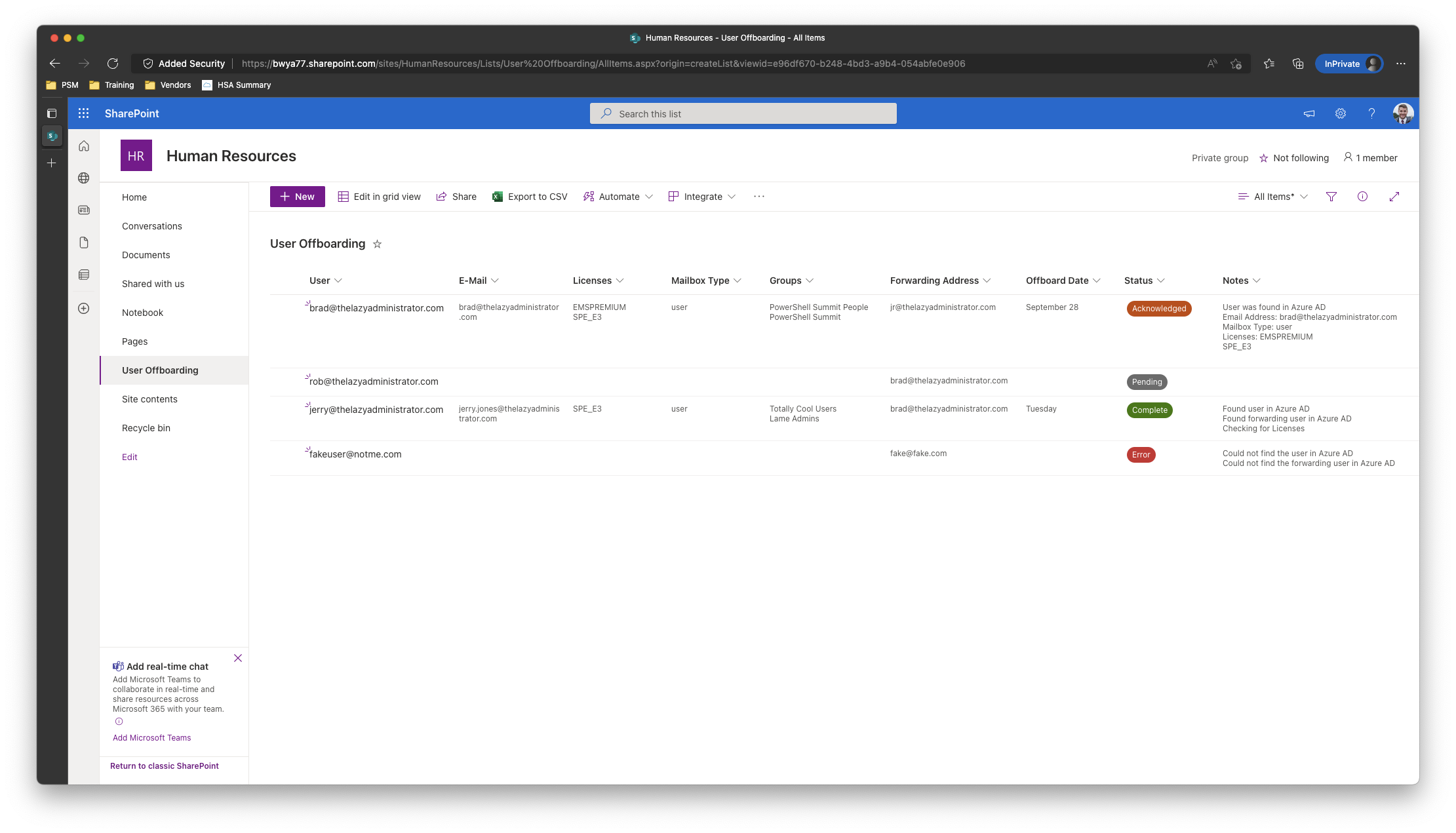
In this write-up I will be creating a basic off-boarding automation that uses SharePoint as the front end, and PowerShell, the Graph API, and Azure Runbooks as the back-end. HR will input the users UPN or Email, offboard date/time, and a forwarding address to forward email to. Once the off-boarding datetime is within 1hr the automation will check the user in Azure AD to ensure its valid, the forwarding user is valid in Azure AD, document in SharePoint the users e-mail address, any and all licenses, and all group memberships. After that, it will proceed with the off-boarding where it will remove all licenses from the user, remove all group memberships, and forward email to our forwarding user. It will log everything back to SharePoint where one can review it.

Off-Boarding Stages

Pending

In Pending we have just submitted our user and the automation has not seen it, or it … Continue...

Office 365 / Exchange Online Mailbox Size Report Including Mailbox Free Space with PowerShell

Office 365 / Exchange Online Mailbox Size Report Including Mailbox Free Space with PowerShell

August 27, 2022 Brad Wyatt Comments 1 comment

I wanted to create an automated alert that would notify me of Office 365 mailboxes that were approaching full, and found a terrific PowerShell reporting script by Ruud (LazyAdmin.nl). If you have not checked out his blog, stop reading now and head on over there. There is a ton of great scripts and write ups! The script connects to your Office 365 environment and exports the following:

  • Display name
  • Primary Email address
  • Mailbox type
  • Last user action time
  • Total mailbox size
  • Mailbox Free Space (NEW!)
  • Deleted item size
  • Item Count
  • Deleted Item Count
  • Issue Warning Size
  • Prohibit Send Receive Quota (max mailbox size)
  • Archive size (if the user has an archive)
  • Archive Item Count
  • Archive Mailbox Free Space (NEW!)
  • Archive Deleted Item Count
  • Archive warning quota
  • Archive quota


Shared Mailboxes

It also allows you to filter the mailbox type that you want to gather results for. By … Continue...

Auto Delete Message From Yammer Community with PowerShell

Auto Delete Message From Yammer Community with PowerShell

August 25, 2022 Brad Wyatt Comments 0 Comment

I was recently tasked with clearing out a Yammer Communities auto-welcoming posts. If you are not familiar with auto-welcoming posts, Yammer used to automatically post a message whenever someone joined a community. It looked something like this, “Bradley Wyatt joined the Lazy Administrator network. Take a moment to welcome Brad.”

Thankfully, Microsoft removed this feature so your community is not littered with auto welcoming messages anymore. But, if your community existed prior to this change you may be faced with hundreds, if not thousands of these posts that you may want to remove.

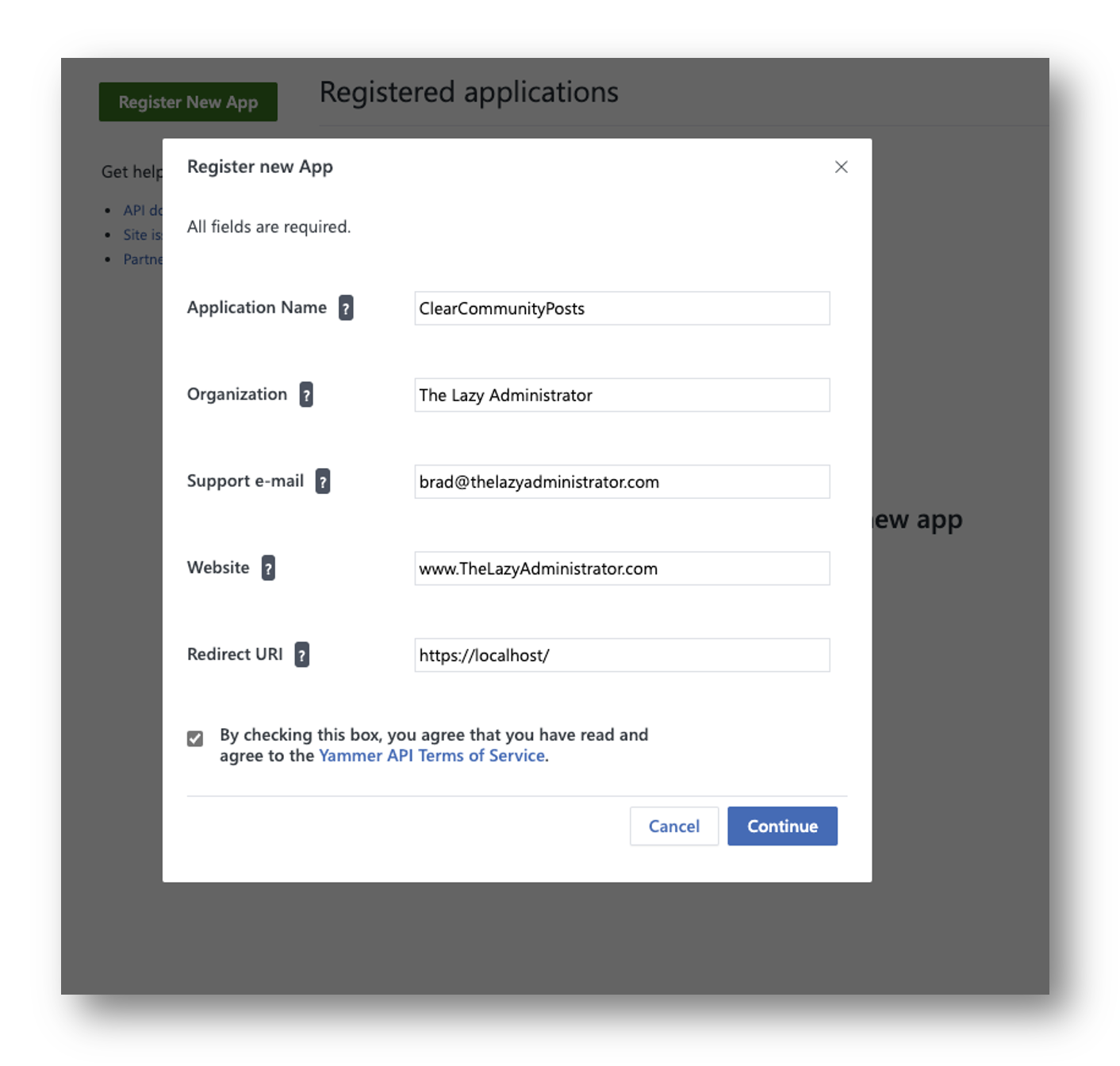
  1. Register a New App so we can interface with the Yammer API
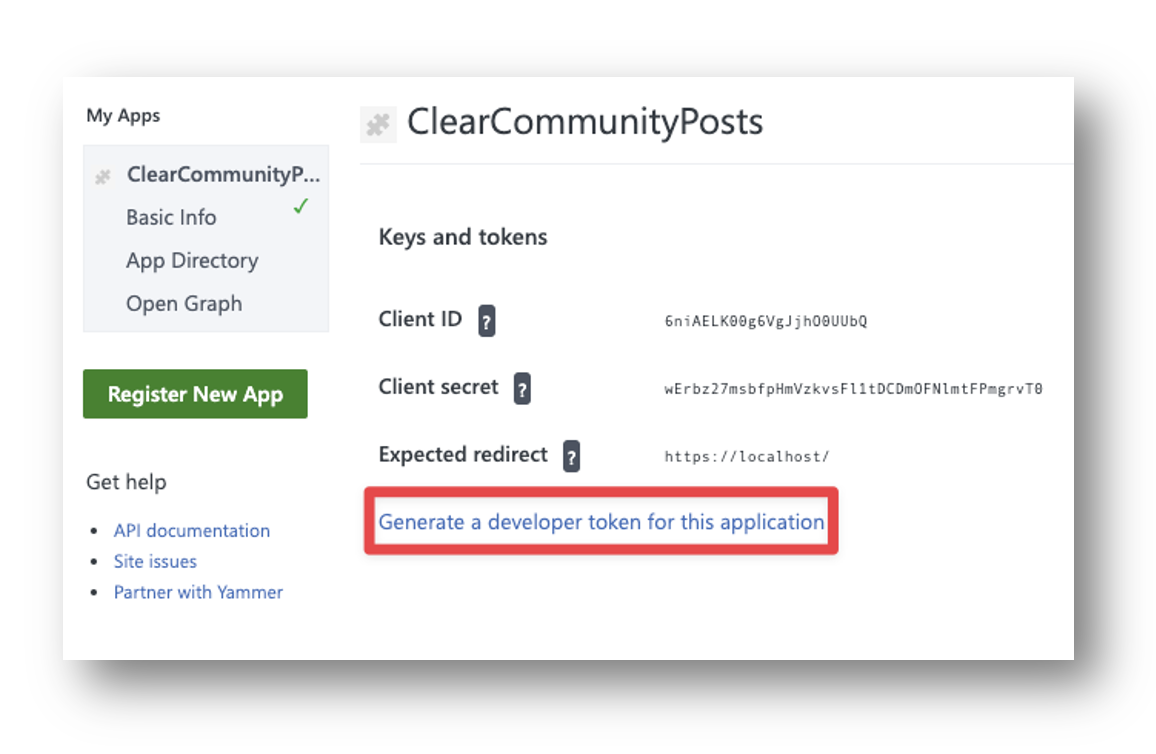
  2. Next, click “Generate a developer token for this application.” Save the token for later as you will need it.
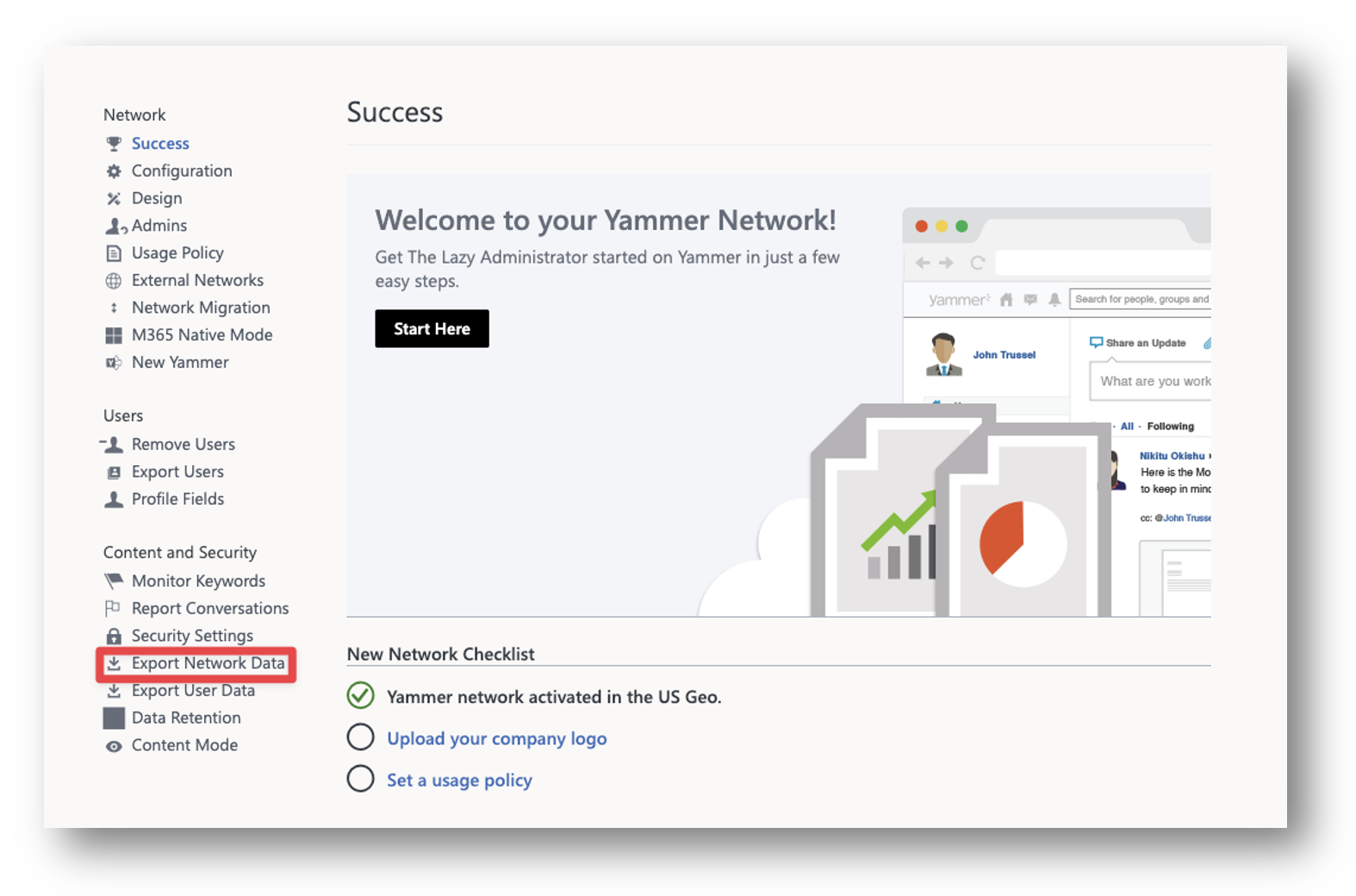
  3. Next, navigate to the Yammer Admin page and click “Export Network Data” under Content and Security.
  4. Select the date range you want
… Continue...
Improved External Email Tagging in Office 365

Improved External Email Tagging in Office 365

August 25, 2022 Brad Wyatt Comments 0 Comment

With the rise of Phishing emails, a popular method to help your users not get phished is to append warnings to emails that either originate outside the organization or if they originate outside the organization and the display name matches that of a internal user. I myself have posted a blog on how to do this and get around the mail flow limitations.

A problem with this method however, is since it prepends a message or warning to the email, users can no longer view previews of the emails either in outlook or on mobile because all they will see is the warning message. A possible solution that I have rolled out several times is to prepend a warning unicode character (⚠️) to the message. The warning symbol was approved as part of Unicode 4.0 in 2003 and added to emoji 1.0 in 2015. As long as the receiving end … Continue...

In-Depth Look at Azure Bicep Syntax

In-Depth Look at Azure Bicep Syntax

February 21, 2022 Brad Wyatt Comments 3 comments

If you have not checked out my other series, “Getting Started with Bicep” then I would highly suggest starting there so you can familiarize yourself with Azure Bicep including some basic syntax and how to write your first template. This article will walk you through more advanced syntax topics including output variables, loops and more!

Comments

Comments in code help you or others figure out what something may do or why it’s there in the first place. While it does not replace full documentation, it is a great way to get a picture of what your code does.

Single Line Comment

You can comment a single line of bicep code by adding ‘//’ to it. In the example below you can see my comment added to the tagging resource that we will go over next!

Multi-line Comments

Instead of adding ‘//’ to every line you want to comment … Continue...

Getting Started With Bicep: Compiling, Deploying, and Decompiling

Getting Started With Bicep: Compiling, Deploying, and Decompiling

February 11, 2022 Brad Wyatt Comments 0 Comment

In the first post of the ‘Getting Started with Bicep’ series we learned what is Azure Bicep and how to install it and begin working with it. Next, we learned how to create our first Bicep template and user parameters and variables and the different data types there are. Now, in this section we will learn how to compile our Bicep templates and deploy them to Azure.

Compile Bicep to ARM

The first item we need to do is to compile or transpile (Transpiling is a specific term for taking source code written in one language and transforming into another language that has a similar level of abstraction.) our Bicep code to ARM (JSON) code. Then, once compiled, the resulting ARM (JSON) template will be deployed to Microsoft Azure.

From our previous post on ‘Getting Started with Bicep: Building your First Bicep Template‘ we created a basic Bicep … Continue...

Getting Started with Bicep: Building Your First Bicep Template

Getting Started with Bicep: Building Your First Bicep Template

February 11, 2022 Brad Wyatt Comments 0 Comment

In the first section, Getting Started with Bicep, an ARM DSL for Azure, we went through what is Azure Bicep, and how to install Bicep on your machine. Now, we will learn how to build our first Bicep Template.

Bicep Declaration Overview

First, lets look at a Bicep declaration in a basic form:

The highlighted Resource (below) indicates the start of the declaration of a new resource in Azure to deploy.

Next, we have the Symbolic Name (in my example: stgact), which is an identifier within the Azure Bicep file. This will allow you to get the properties from the declared resource to be used in other resources elsewhere. Keep in mind, this is not the name of the Azure resource that is deployed.

Following the Symbolic Name, we have the Resource Provider.

Next, we have the Resource Type,  this is the Azure Resource Type name for the resource … Continue...

Getting Started with Bicep, an ARM DSL for Azure

Getting Started with Bicep, an ARM DSL for Azure

February 10, 2022 Brad Wyatt Comments 1 comment

Note: This is one part of a several part blog series that goes through Azure Bicep

What is Azure Bicep

Bicep is a Domain Specific Language or DSL, for deploying Azure resources in a declarative manner. It ‘aims to drastically simplify the authoring experience with a cleaner syntax and better support for modularity and code re-use. Bicep is a transparent abstraction over ARM and ARM templates, which means anything that can be done in an ARM Template can be done in Bicep.’1

Bicep moves away from the JSON syntax used by ARM Templates to something similar to HCL in Terraform. The end result is a syntax that is easier to both read and write. Bicep code is converted into ARM Template code (JSON), and then the resulting ARM Template code (JSON) is used to deploy your Azure resources.

One of the key benefits to Bicep to another DSL like … Continue...

Posts navigation

OLDER POSTS
NEWER POSTS

Subscribe

Email


Categories

  • Active Directory (8)
  • AI (3)
  • API (1)
  • AutoPilot (2)
  • Azure (18)
  • Bicep (4)
  • Connectwise (1)
  • Defender for Cloud Apps (1)
  • Delegated Admin (1)
  • DevOps (9)
  • Graph (7)
  • Intune (16)
  • LabTech (1)
  • Microsoft Teams (6)
  • Office 365 (19)
  • Permissions (2)
  • PowerShell (52)
  • Security (1)
  • SharePoint (3)
  • Skype for Business (1)
  • Terraform (1)
  • Uncategorized (2)
  • Yammer (1)

Recent Comments

  • Baru01 APK on Windows LAPS Management, Configuration and Troubleshooting Using Microsoft Intune
  • Jason on Auto Deploy Progressive Web Applications (PWA) using Intune or PowerShell
  • hiwin on The Microsoft Graph Command-Line Interface (CLI)
  • fabio on Set-ADUser: Dealing with Null Values when Importing a CSV; Working with Parameters and Properties that don’t Accept Empty Strings
  • Dominik on Auto Deploy Progressive Web Applications (PWA) using Intune or PowerShell

1,828,363 People Reached

© 2025   All Rights Reserved.