Stop Configuration Drift in Microsoft 365 Using the new Configuration Management API’s – A Deep Dive
Table of Contents
Overview
Microsoft has released into public preview a new set of APIs that enable administrators to monitor and alert on configuration changes across one or more tenants, spanning multiple Microsoft 365 workloads, including:
- Microsoft Entra
- Exchange Online
- Microsoft Intune
- Microsoft Defender
- Microsoft Purview
- Microsoft Teams
This product is currently in Public Preview. Features and functionality may change or experience issues, so please refer to Microsoft’s documentation for the most up-to-date information.
Current Limitations
At the time of this blog post, the limitations can be found below. You can check the latest limitations here.
Tenant Monitoring
- 30 configurationMonitor objects per tenant
- Each configurationMonitor runs at a fixed interval of 6 hours.
- Can monitor up to 800 configuration resources per day per tenant, across all monitors.
- Administrators have full control over how this quota is consumed, whether through a single monitor or multiple monitors. For example, if a monitor’s baseline includes 20 transport rules and 30 Conditional Access policies, the monitor evaluates 50 resources per cycle. Because the monitor runs every six hours (four cycles per day), this results in 200 resources monitored per day.
- When an administrator updates the baseline of an existing monitor, all previously generated monitoring results and detected drifts for that monitor are automatically deleted.
Drifts
- All active drifts are retained for admins to review. When a drift is fixed, it is deleted 30 days after its resolved.
Snapshots
- You can extract a maximum of 20,000 resources per tenant per month. This is a cumulative limit across all snapshots.
- A maximum of 12 snapshot jobs are visible to the admin, if you want to create more snapshot jobs, you will have to delete one or more existing jobs.
- Snapshots are retained for a maximum of 7 days.
Useful Links
1. Set up Authentication for UTCM API’s
The official Microsoft documentation for setting up authentication can be found here.
Authentication
When working with UTCM APIs, there are two separate authentications flows, each serving a different purpose:
- Authentication for you or your app to talk to Microsoft Graph – This is used to create and manage monitors and to start snapshot jobs. Authentication is done using either:
- A user account with a privileged role, or
- A service principal with the required Microsoft Graph permissions.
- Authentication for the monitors themselves to run – When a monitor executes, it impersonates a dedicated UTCM service principal. This service principal must:
- Exist in your tenant, and
- Be granted the appropriate permissions to read and/or write data in workloads such as Entra ID, Exchange, and policy endpoints.
Authenticate to Microsoft Graph
To manage monitors or initiate a snapshot job, you must first obtain an access token to Microsoft Graph by authenticating with either a user’s credentials (user-delegated flow) or a service principal. The following table summarizes the required permissions:
| Scenario | User delegated | Service principal |
|---|---|---|
| Monitor management | Any privileged role* | ConfigurationMonitoring.Read.All or ConfigurationMonitoring.ReadWrite.All |
| Snapshots | Any privileged role* | ConfigurationMonitoring.ReadWrite.All |
Authentication to run a monitor
When a monitor executes, it impersonates the UTCM-specified principal. The UTCM solution exposes an official service principal named Unified Tenant Configuration Management with the following application ID:
03b07b79-c5bc-4b5e-9bfa-13acf4a999982. Set up the UTCM Service Principal
Add the UTCM Service Principal to your Tenant
At the time of writing this, because UTCM is in public preview, organizations must add the UTCM service principal to their tenant and grant it the required permissions.
- On your machine, if you do not already have the following PowerShell modules, install them:
Install-Module Microsoft.Graph.Authentication
Install-Module Microsoft.Graph.Applications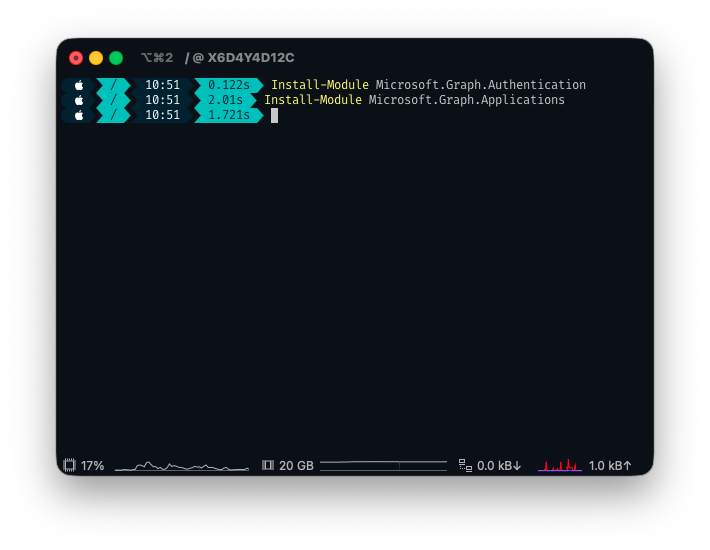
2. Next, we need to connect to Microsoft Graph:
Connect-MgGraph -Scopes 'Application.ReadWrite.All'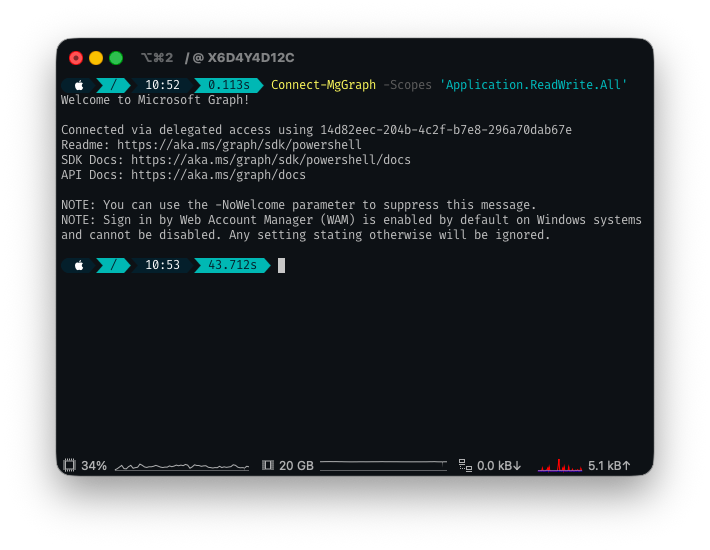
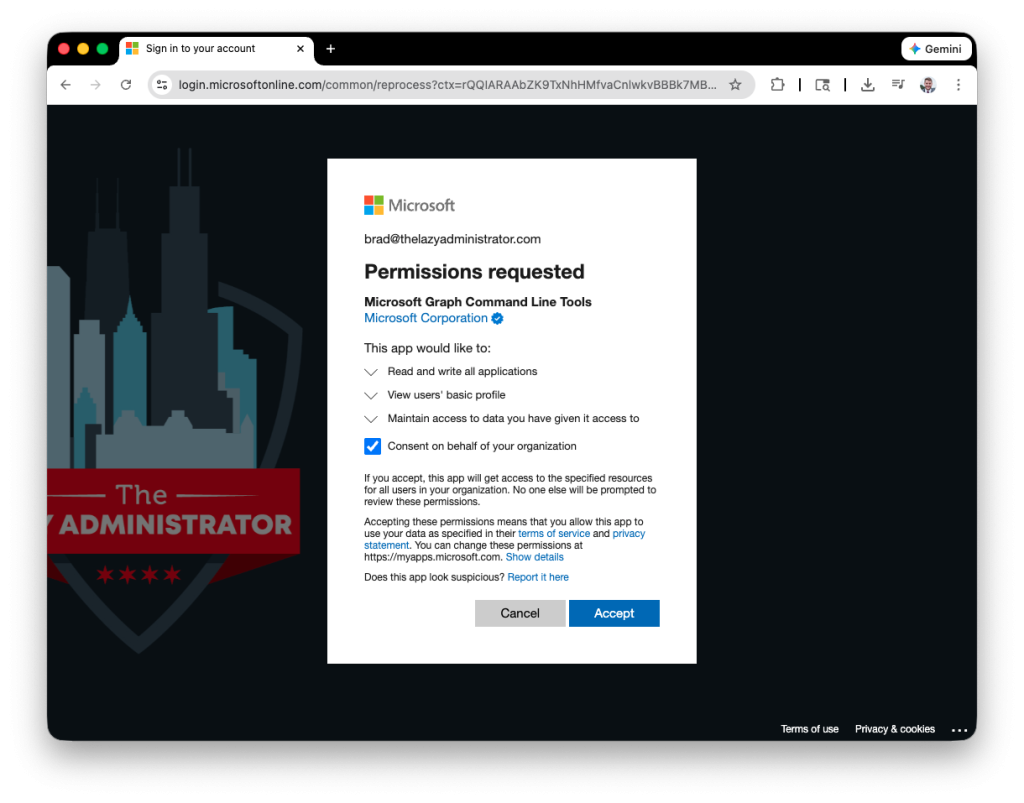
3. You may be prompted to consent to the requested permissions
4. Next, we need to create the Service Principal. Again, this may not be required once UTCM is out of public preview:
New-MgServicePrincipal -AppId '03b07b79-c5bc-4b5e-9bfa-13acf4a99998'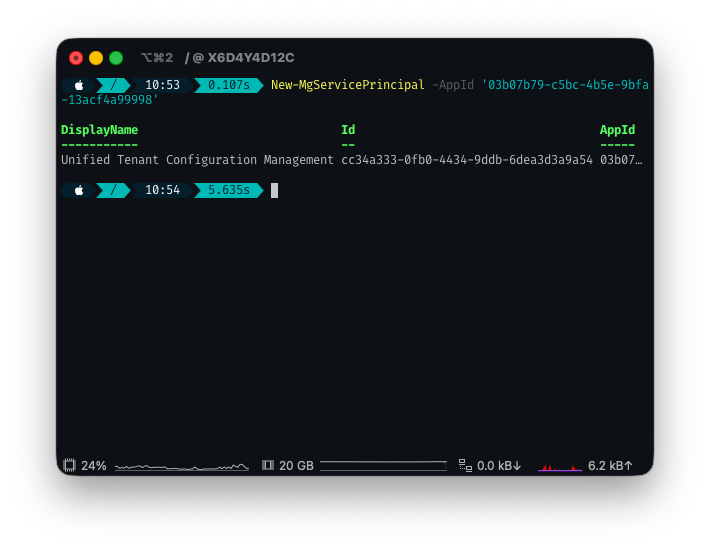
Grant Permissions to the UTCM Service Principal
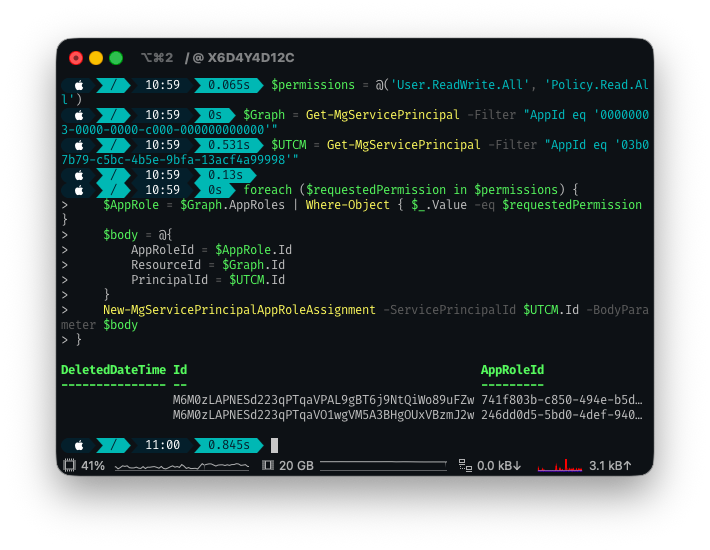
Now that we successfully created the Service Principal in our tenant, we need to grant the proper permissions to it so it can access the workload endpoints. In our example we will be giving it the User.ReadWrite.All and Policy.Read.All permissions.
$permissions = @('User.ReadWrite.All', 'Policy.Read.All')
$Graph = Get-MgServicePrincipal -Filter "AppId eq '00000003-0000-0000-c000-000000000000'"
$UTCM = Get-MgServicePrincipal -Filter "AppId eq '03b07b79-c5bc-4b5e-9bfa-13acf4a99998'"

foreach ($requestedPermission in $permissions) {
    $AppRole = $Graph.AppRoles | Where-Object { $_.Value -eq $requestedPermission }
    $body = @{
        AppRoleId = $AppRole.Id
        ResourceId = $Graph.Id
        PrincipalId = $UTCM.Id
    }
    New-MgServicePrincipalAppRoleAssignment -ServicePrincipalId $UTCM.Id -BodyParameter $body
}
For Exchange Online permissions, see Application access policies in Exchange Online.
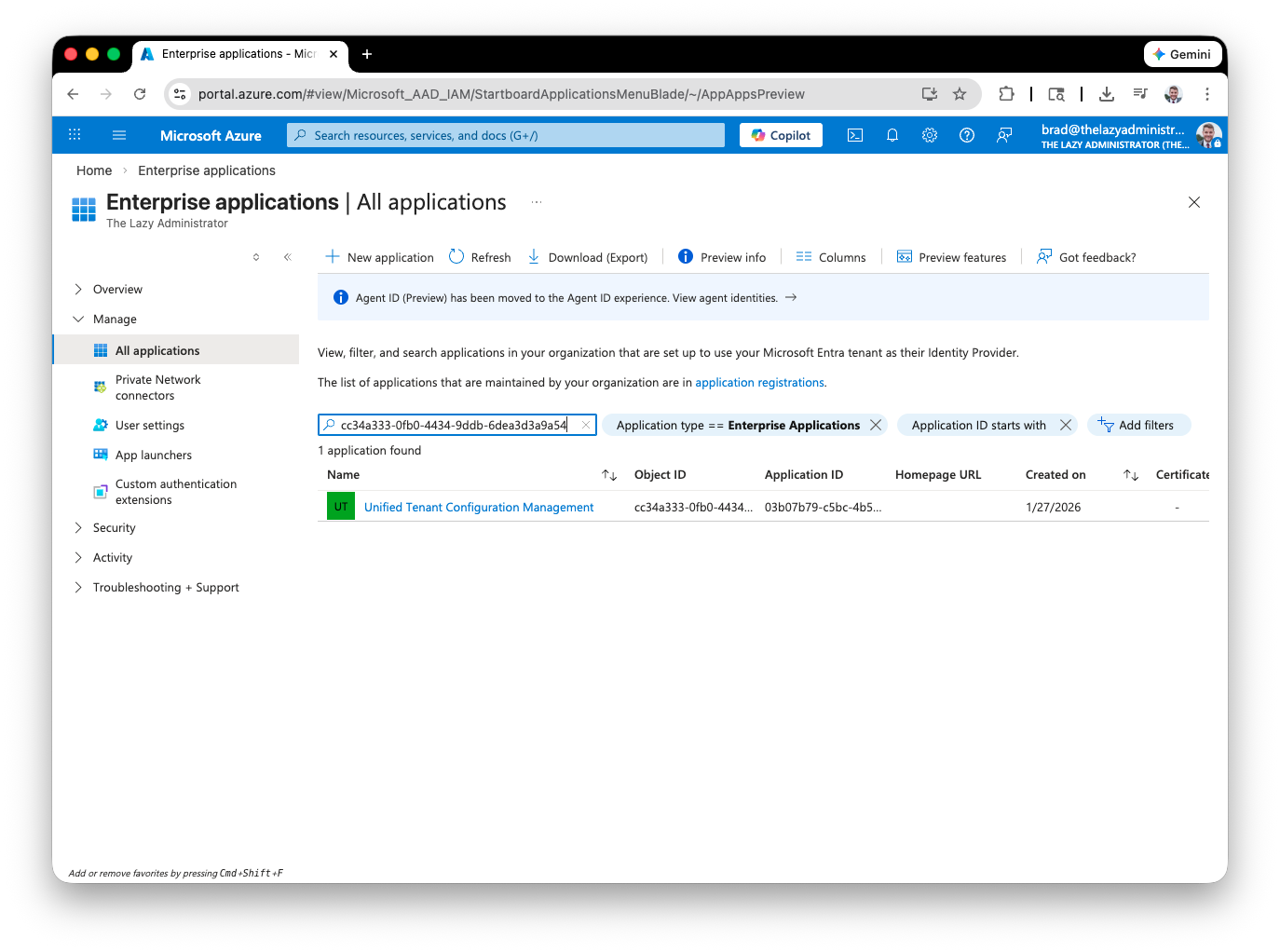
If you go to the Azure Portal > Entra ID > Enterprise Applications > and then lookup by your $UTCM.id you will see your Service Principal Unified Tenant Configuration Management.
3. Create Azure AD App (optional)
This next step is optional but I would recommend it. We are going to make an Azure AD App which we will use to connect to the Microsoft Graph API and create out snapshots, configuration monitors as more. We need to ensure that the app has the ConfigurationMonitoring.ReadWrite.All permission.
- First I am going to log into the Azure Portal and go to Microsoft Entra ID > App Registrations > New Registration
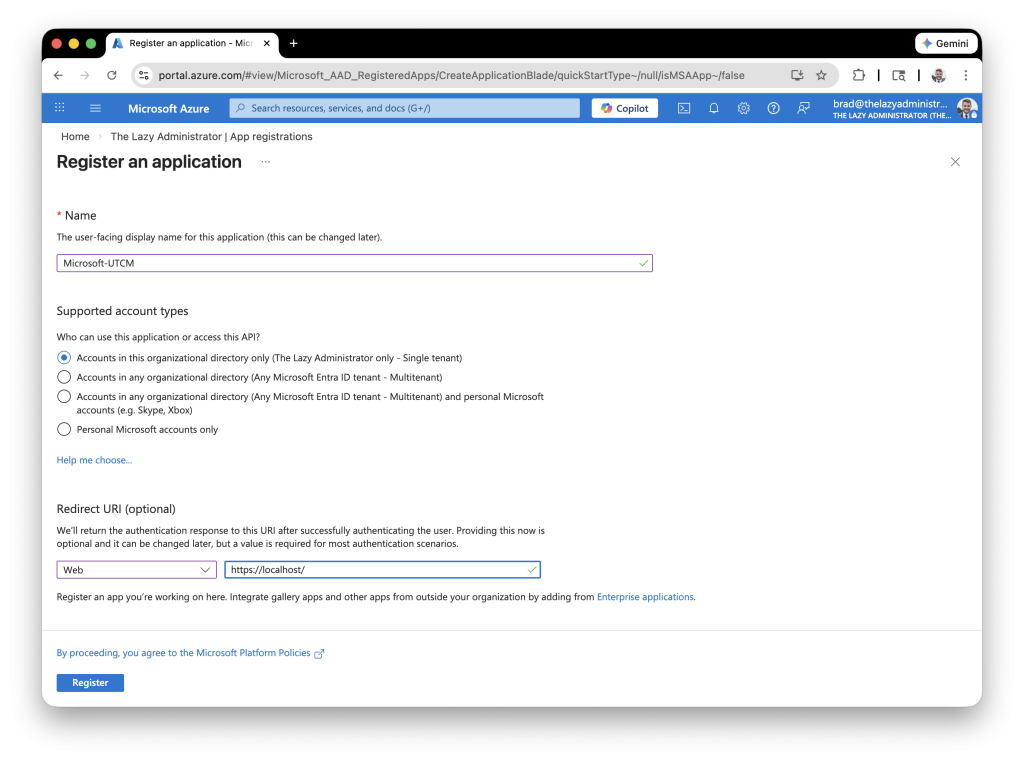
2. Give your new app a name, for my example I used Microsoft-UTCM and then for the redirect URI use https://localhost
3. Next, after its been created, go to API Permissions and add the ConfigurationMonitoring.ReadWrite.All applications permission. Grant consent.
4. Lastly, we need to create a secret for the application, to do so click Certificates & Secrets
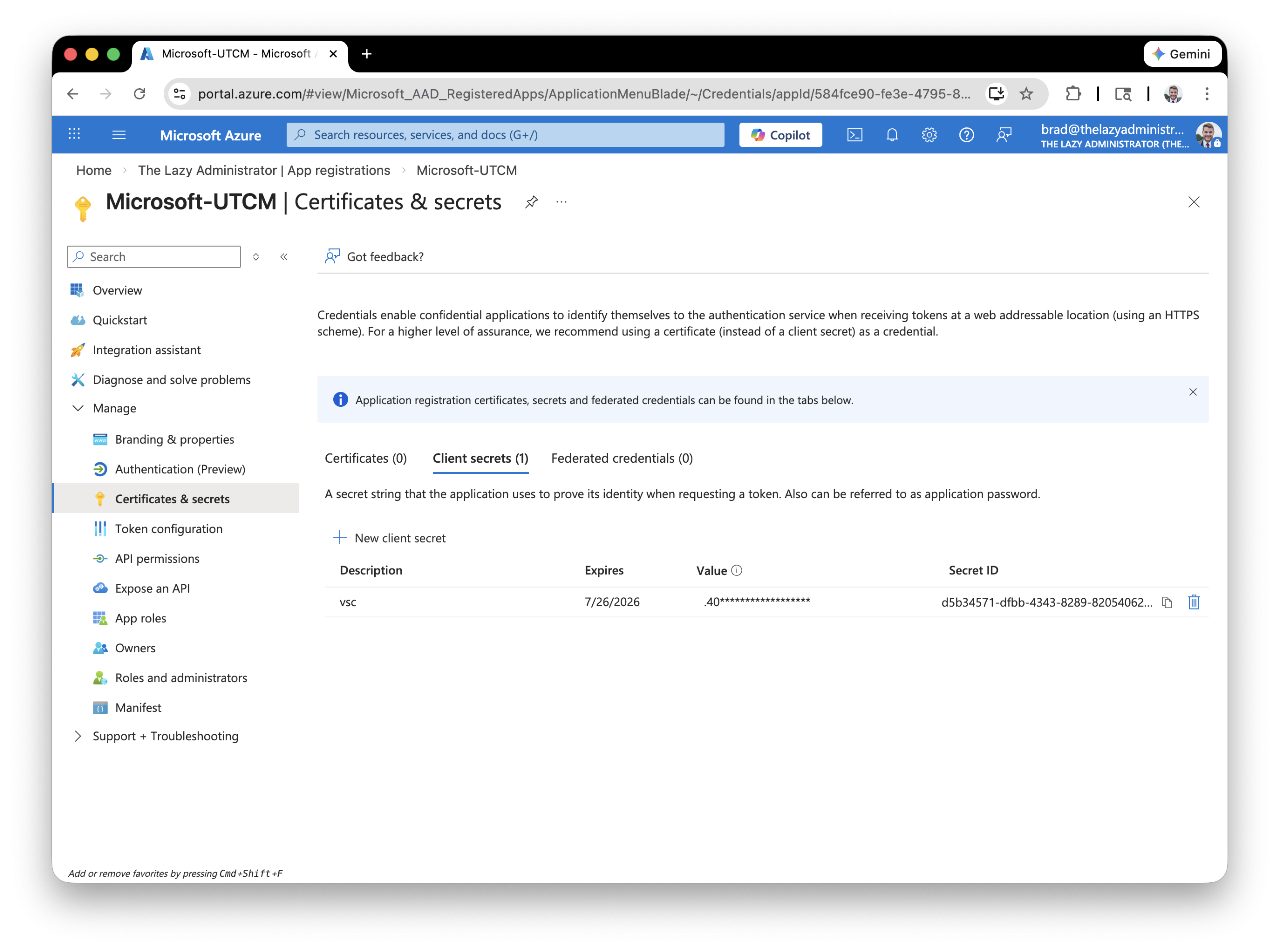
5. Done! Now we when connect to the Microsoft Graph API and do things like create secrets, configuration monitors, etc. We will connect using this application. The Service Principal for UTCM will be used to perform the actual drift analysis, snapshot, etc.
4. Create a Snapshot (baseline)
Now that we have set up our Service Principal with the proper permissions, our next step is to create a snapshot or baseline. In my example I am going to make a snapshot for the following resources:
microsoft.entra.user
After running Create Snapshot.http I get the following response:
{
  "@odata.context": "https://graph.microsoft.com/beta/$metadata#microsoft.graph.configurationSnapshotJob",
  "id": "44dfe2c1-86ca-4c2b-9151-ca6d6eb06626",
  "displayName": "Snapshot Demo",
  "description": "This is Snapshot Description",
  "tenantId": "6438b2c9-54e9-4fce-9851-f00c24b5dc1f",
  "status": "notStarted",
  "resources": [
    "microsoft.entra.user"
  ],
  "createdDateTime": "2026-01-27T19:47:25.9297207Z",
  "completedDateTime": "0001-01-01T00:00:00Z",
  "resourceLocation": "",
  "createdBy": {
    "user": {
      "id": null,
      "displayName": null
    },
    "application": {
      "id": "584fce90-fe3e-4795-8d3e-2c8c1487ac2c",
      "displayName": "584fce90-fe3e-4795-8d3e-2c8c1487ac2c"
    }
  }
}We can view our baseline snapshot by running the Get Snapshot.http which shows us our snapshot details, now I can see that it was partially successful
{
  "@odata.context": "https://graph.microsoft.com/beta/$metadata#admin/configurationManagement/configurationSnapshotJobs",
  "value": [
    {
      "id": "61ed9835-4a40-4350-8a7d-80a2834041c4",
      "displayName": "Snapshot Demo",
      "description": "This is Snapshot Description",
      "tenantId": "6438b2c9-54e9-4fce-9851-f00c24b5dc1f",
      "status": "partiallySuccessful",
      "resources": [
        "microsoft.entra.user"
      ],
      "createdDateTime": "2026-01-27T19:34:43.3307838Z",
      "completedDateTime": "2026-01-27T19:36:52.512006Z",
      "resourceLocation": "https://graph.microsoft.com/beta/admin/configurationManagement/configurationSnapshots('6212525c-52a5-4af9-8250-90b57fef26e8')",
      "createdBy": {
        "user": {
          "id": null,
          "displayName": null
        },
        "application": {
          "id": "584fce90-fe3e-4795-8d3e-2c8c1487ac2c",
          "displayName": "584fce90-fe3e-4795-8d3e-2c8c1487ac2c"
        }
      }
    }
  ]
}This is because when we made our Service Principal that the UTCM uses, we gave it the permission User.ReadWrite.All and to monitor users it can also do things like monitor group membership, roles and license assignments, with only User,ReadWrite.All our Service Principal will be unable to monitor these items. If I go back and add Directory.Read.All, delete the snapshot and re-create it, I can see that its now successful. Below is the PowerShell script which will add the correct permission.
# App ID of the Unified Tenant Configuration Management service principal
$MyAppId = "03b07b79-c5bc-4b5e-9bfa-13acf4a99998"
$MySP = Get-MgServicePrincipal -Filter "AppId eq '$MyAppId'"

# Microsoft Graph service principal
$GraphSP = Get-MgServicePrincipal -Filter "AppId eq '00000003-0000-0000-c000-000000000000'"

$UserRWRole = $GraphSP.AppRoles | Where-Object {
    $_.Value -eq "Directory.Read.All" -and $_.AllowedMemberTypes -contains "Application"
}
$UserRWRole | Select Id, Value, Description

New-MgServicePrincipalAppRoleAssignment `
    -ServicePrincipalId $MySP.Id `
    -PrincipalId $MySP.Id `
    -ResourceId $GraphSP.Id `
-AppRoleId $UserRWRole.IdNow with the proper permission, we can see it succeeded.
{
  "@odata.context": "https://graph.microsoft.com/beta/$metadata#admin/configurationManagement/configurationSnapshotJobs",
  "value": [
    {
      "id": "44dfe2c1-86ca-4c2b-9151-ca6d6eb06626",
      "displayName": "Snapshot Demo",
      "description": "This is Snapshot Description",
      "tenantId": "6438b2c9-54e9-4fce-9851-f00c24b5dc1f",
      "status": "succeeded",
      "resources": [
        "microsoft.entra.user"
      ],
      "createdDateTime": "2026-01-27T19:47:25.9297207Z",
      "completedDateTime": "2026-01-27T19:49:27.1064622Z",
      "resourceLocation": "https://graph.microsoft.com/beta/admin/configurationManagement/configurationSnapshots('8142d409-be4c-4273-9485-8249c6e67e0d')",
      "createdBy": {
        "user": {
          "id": null,
          "displayName": null
        },
        "application": {
          "id": "584fce90-fe3e-4795-8d3e-2c8c1487ac2c",
          "displayName": "584fce90-fe3e-4795-8d3e-2c8c1487ac2c"
        }
      }
    }
  ]
}If you wanted to view the full details of the snapshot you can run the Get Snapshot.http request. For my example it will show my all my users and their data (which can be helpful when making your monitor). Below is a shortened snippet:
{
  "@odata.context": "https://graph.microsoft.com/beta/$metadata#admin/configurationManagement/configurationSnapshots/$entity",
  "id": "8142d409-be4c-4273-9485-8249c6e67e0d",
  "displayName": "Snapshot Demo",
  "description": "This is Snapshot Description",
  "parameters": [],
  "resources": [
    {
      "displayName": "AADUser-Harry Potter",
      "resourceType": "microsoft.entra.user",
      "properties": {
        "LastName": "Potter",
        "UserPrincipalName": "[email protected]",
        "PasswordNeverExpires": false,
        "Ensure": "Present",
        "DisplayName": "Harry Potter",
        "UserType": "Member",
        "FirstName": "Harry",
        "Department": "IT",
        "LicenseAssignment": [],
        "Roles": []
      }
    },
    {
      "displayName": "AADUser-William Cool",
      "resourceType": "microsoft.entra.user",
      "properties": {
        "Department": "IT",
        "LastName": "Cool",
        "UserPrincipalName": "[email protected]",
        "PasswordNeverExpires": false,
        "Ensure": "Present",
        "DisplayName": "William Cool",
        "UserType": "Member",
        "UsageLocation": "US",
        "FirstName": "William",
        "LicenseAssignment": [
          "FLOW_FREE"
        ],
        "Roles": []
      }
    },
5. Create a Configuration Monitor
With the snapshot successful we now captured the current Entra user configuration that will act as a baseline, or desired state. Next, we need to create a monitor to detect any drift within our tenant. The configuration monitors currently run automatically every 6 hours.
For this example I am going to create a configuration monitor for my account that will monitor the following:
DisplayNamemust be “Bradley Wyatt”UserPrincipalNamemust be “[email protected]”- Ensure: Present (the user must not be deleted)
- Microsoft 365 E5 (no Teams) license must be assigned and no other licenses
- Must have the
Global Administratorrole and only the Global Administrator role
Note: The schema file can be found here which serves as a great reference point so you can see what resources can be monitored and their associated properties. It will also tell you which property or properties are required. For users we can see the following:
{
      "type": "object",
      "description": "This resource allows users to create Azure AD Users and assign them licenses, roles and/or groups.\r\n\r\nIf using with AADGroup, be aware that if AADUser->MemberOf is being specified and the referenced group is configured with AADGroup->Member then a conflict may arise if the two don't match. It is usually best to choose only one of them. See AADGroup",
      "title": "Schema for microsoft.entra.user",
      "properties": {
        "UserPrincipalName": {
          "type": "string",
          "description": "The login name of the user",
          "title": "UserPrincipalName"
        },
        "DisplayName": {
          "type": "string",
          "description": "The display name for the user",
          "title": "DisplayName"
        },
        "FirstName": {
          "type": "string",
          "description": "The first name of the user",
          "title": "FirstName"
        },
        "LastName": {
          "type": "string",
          "description": "The last name of the user",
          "title": "LastName"
        },
        "Roles": {
          "type": "array",
          "items": {
            "type": "string"
          },
          "description": "The list of Azure Active Directory roles assigned to the user.",
          "title": "Roles"
        },
        "UsageLocation": {
          "type": "string",
          "description": "The country code the user will be assigned to",
          "title": "UsageLocation"
        },
        "LicenseAssignment": {
          "type": "array",
          "items": {
            "type": "string"
          },
          "description": "The account SKU Id for the license to be assigned to the user",
          "title": "LicenseAssignment"
        },
        "City": {
          "type": "string",
          "description": "The City name of the user",
          "title": "City"
        },
        "Country": {
          "type": "string",
          "description": "The Country name of the user",
          "title": "Country"
        },
        "Department": {
          "type": "string",
          "description": "The Department name of the user",
          "title": "Department"
        },
        "Fax": {
          "type": "string",
          "description": "The Fax Number of the user",
          "title": "Fax"
        },
        "MemberOf": {
          "type": "array",
          "items": {
            "type": "string"
          },
          "description": "The Groups that the user is a direct member of",
          "title": "MemberOf"
        },
        "MobilePhone": {
          "type": "string",
          "description": "The Mobile Phone Number of the user",
          "title": "MobilePhone"
        },
        "Office": {
          "type": "string",
          "description": "The Office Name of the user",
          "title": "Office"
        },
        "PasswordNeverExpires": {
          "type": "boolean",
          "description": "Specifies whether the user password expires periodically. Default value is false",
          "title": "PasswordNeverExpires"
        },
        "PasswordPolicies": {
          "type": "string",
          "description": "Specifies password policies for the user.",
          "title": "PasswordPolicies"
        },
        "PhoneNumber": {
          "type": "string",
          "description": "The Phone Number of the user",
          "title": "PhoneNumber"
        },
        "PostalCode": {
          "type": "string",
          "description": "The Postal Code of the user",
          "title": "PostalCode"
        },
        "PreferredLanguage": {
          "type": "string",
          "description": "The Preferred Language of the user",
          "title": "PreferredLanguage"
        },
        "State": {
          "type": "string",
          "description": "Specifies the state or province where the user is located",
          "title": "State"
        },
        "StreetAddress": {
          "type": "string",
          "description": "Specifies the street address of the user",
          "title": "StreetAddress"
        },
        "Title": {
          "type": "string",
          "description": "Specifies the title of the user",
          "title": "Title"
        },
        "UserType": {
          "description": "Specifies the title of the user",
          "title": "UserType",
          "pattern": "^([Gg][Uu][Ee][Ss][Tt]|[Mm][Ee][Mm][Bb][Ee][Rr]|[Oo][Tt][Hh][Ee][Rr]|[Vv][Ii][Rr][Aa][Ll])$",
          "errorMessage": "Value is not accepted. Valid values: 'Guest', 'Member', 'Other', 'Viral'",
          "examples": ["Guest", "Member", "Other", "Viral"]
        },
        "Ensure": {
          "description": "Present ensures the user exists, absent ensures it is removed",
          "title": "Ensure",
          "pattern": "^([Pp][Rr][Ee][Ss][Ee][Nn][Tt]|[Aa][Bb][Ss][Ee][Nn][Tt])$",
          "errorMessage": "Value is not accepted. Valid values: 'Present', 'Absent'",
          "examples": ["Absent", "Present"]
        }
      },
      "required": ["UserPrincipalName"]
}To do this I will run the Create Configuration Monitor.http API call. I get the following response:
Note: Notice how we get the property mode returned which is set to monitorOnly. If I were to guess, I think Microsoft may come out with functionality in the future which will allow us to not only alert on drift but also revert it automatically.
{
  "@odata.context": "https://graph.microsoft.com/beta/$metadata#admin/configurationManagement/configurationMonitors/$entity",
  "id": "fb708914-be65-4fda-a01e-77c4b2b7c403",
  "displayName": "Demo Monitor",
  "description": "This is a Demo Monitor for Entra Users",
  "tenantId": "6438b2c9-54e9-4fce-9851-f00c24b5dc1f",
  "status": "active",
  "monitorRunFrequencyInHours": 6,
  "mode": "monitorOnly",
  "createdDateTime": "2026-01-27T20:18:25.8899114Z",
  "lastModifiedDateTime": "2026-01-27T20:18:25.9066099Z",
  "runAsUTCMServicePrincipal": true,
  "inactivationReason": null,
  "createdBy": {
    "user": {
      "id": null,
      "displayName": null
    },
    "application": {
      "id": "584fce90-fe3e-4795-8d3e-2c8c1487ac2c",
      "displayName": "584fce90-fe3e-4795-8d3e-2c8c1487ac2c"
    }
  },
  "runningOnBehalfOf": {
    "user": null,
    "application": {
      "id": "03b07b79-c5bc-4b5e-9bfa-13acf4a99998",
      "displayName": "Unified Tenant Configuration Management"
    }
  },
  "lastModifiedBy": {
    "user": {
      "id": null,
      "displayName": null
    },
    "application": {
      "id": "584fce90-fe3e-4795-8d3e-2c8c1487ac2c",
      "displayName": "584fce90-fe3e-4795-8d3e-2c8c1487ac2c"
    }
  },
  "parameters": {}
}If I run the Get Configuration Monitor Baseline.http API call, you will see the parameters of your monitor as well:
{
  "@odata.context": "https://graph.microsoft.com/beta/$metadata#admin/configurationManagement/configurationMonitors('fb708914-be65-4fda-a01e-77c4b2b7c403')/baseline/$entity",
  "id": "32daf1f9-b0b7-4d09-b3b6-950b81b650d3",
  "displayName": "Demo Baseline",
  "description": "This is a baseline with User resources",
  "parameters": [],
  "resources": [
    {
      "displayName": "Config Drift Bradley Wyatt Entra User",
      "resourceType": "microsoft.entra.user",
      "properties": {
        "DisplayName": "Bradley Wyatt",
        "UserPrincipalName": "[email protected]",
        "Ensure": "Present",
        "LicenseAssignment": [
          "Microsoft_365_E5_(no_Teams)"
        ],
        "Roles": [
          "Global Administrator"
        ]
      }
    }
  ]
}
6. Review Monitoring Results and Drifts
Now that I have my baseline snapshot set up and a configuration monitor, I am going to change the following items:
- Change the
displayname - Add a different license
- Add the user to the Reports Reader role and Security Administrator role
Once the Configuration monitor runs after the 6 hours, I can runList Configuration Drift.httpand I get the following results:
{
  "@odata.context": "https://graph.microsoft.com/beta/$metadata#admin/configurationManagement/configurationDrifts",
  "value": [
    {
      "id": "ec7f26c3-56cf-4df7-8397-07a99e7d1b52",
      "monitorId": "fb708914-be65-4fda-a01e-77c4b2b7c403",
      "tenantId": "6438b2c9-54e9-4fce-9851-f00c24b5dc1f",
      "resourceType": "microsoft.entra.user",
      "baselineResourceDisplayName": "Config Drift Bradley Wyatt Entra User",
      "firstReportedDateTime": "2026-01-28T00:01:22.7128404Z",
      "status": "active",
      "resourceInstanceIdentifier": {
        "UserPrincipalName": "[email protected]"
      },
      "driftedProperties": [
        {
          "propertyName": "DisplayName",
          "currentValue": "Bradley Robert Wyatt",
          "desiredValue": "Bradley Wyatt"
        },
        {
          "propertyName": "Roles",
          "currentValue": [
            "Reports Reader",
            "Global Administrator",
            "Security Administrator"
          ],
          "desiredValue": [
            "Global Administrator"
          ]
        },
        {
          "propertyName": "LicenseAssignment",
          "currentValue": [
            "EXCHANGESTANDARD"
          ],
          "desiredValue": [
            "Microsoft_365_E5_(no_Teams)"
          ]
        }
      ]
    }
  ]
}
Here we can see the current values and the desired values. Properties like UserPrincipalName are not included because the currentValue is equal to the desiredValue.
If I now run List Configuration Monitoring Result.http I can see that I now have a successful run with 1 reported drift:
{
  "@odata.context": "https://graph.microsoft.com/beta/$metadata#admin/configurationManagement/configurationMonitoringResults",
  "value": [
    {
      "id": "2f488e6f-c8d5-4181-afb7-1b56cfd7094b",
      "monitorId": "fb708914-be65-4fda-a01e-77c4b2b7c403",
      "tenantId": "6438b2c9-54e9-4fce-9851-f00c24b5dc1f",
      "runInitiationDateTime": "2026-01-28T00:00:07.5681156Z",
      "runCompletionDateTime": "2026-01-28T00:01:23.2085018Z",
      "runStatus": "successful",
      "driftsCount": 1,
      "driftsFixed": 0,
      "runType": "monitor"
    }
  ]
}Once the drift is resolved, the configuration drift status will change from active to resolved. Once in a resolved state it will auto delete after 7 days.
After it runs again, I can run List Configuration Monitoring Result.http again and we can now see that everything is aligned.
{
  "@odata.context": "https://graph.microsoft.com/beta/$metadata#admin/configurationManagement/configurationMonitoringResults",
  "value": [
    {
      "id": "19aac56c-d4d8-4175-abd1-9afd08e0629c",
      "monitorId": "fb708914-be65-4fda-a01e-77c4b2b7c403",
      "tenantId": "6438b2c9-54e9-4fce-9851-f00c24b5dc1f",
      "runInitiationDateTime": "2026-01-28T12:00:14.5385328Z",
      "runCompletionDateTime": "2026-01-28T12:01:15.3481673Z",
      "runStatus": "successful",
      "driftsCount": 0,
      "driftsFixed": 0,
      "runType": "monitor"
    },
    {
      "id": "96cf965b-3474-4a10-9fda-e33b72278f74",
      "monitorId": "fb708914-be65-4fda-a01e-77c4b2b7c403",
      "tenantId": "6438b2c9-54e9-4fce-9851-f00c24b5dc1f",
      "runInitiationDateTime": "2026-01-28T06:01:01.0449046Z",
      "runCompletionDateTime": "2026-01-28T06:02:00.9175542Z",
      "runStatus": "successful",
      "driftsCount": 0,
      "driftsFixed": 0,
      "runType": "monitor"
    }
  ]
}
My name is Bradley Wyatt; I am a 6x Dual-Microsoft Most Valuable Professional (MVP) in Microsoft Azure and Microsoft 365. I have given talks at many different conferences, user groups, and companies throughout the United States, ranging from PowerShell to DevOps Security best practices, and I am the 2022 North American Outstanding Contribution to the Microsoft Community winner.